

Scan on iPhone and iPad
TrueScan collects everything for one patient order on an iPhone or iPad: 3D scans, photos, documents and your prescription form. Tap Upload and it goes to LutraCAD, where you can start the design.
From order to upload in four steps

1. Create the order
Tap New Order and enter a reference, or open the order from a QR code or link.

2. Scan
Make the 3D scans, take photos and scan paper documents with the camera.

3. Fill in the form
Fill in your prescription form, with the questions and options of your organisation.

4. Upload
Tap Upload and the whole order arrives in LutraCAD. Open it in the LutraCAD software or download it from the website.
Feet, arms, heads and torsos
Scan the foot for insoles, shoe lasts and midsoles, or another body part for braces, helmets and corsets.
-
Plantar side
Scan the underside of the foot as the starting point for an insole.
-
Full foot
Walk around the foot and capture it completely, for shoe lasts, midsoles and other products that need the whole shape.
-
Foambox
Scan an impression box instead of the foot, one box per side.
-
Foot in the foambox, plus the imprint
Scan the foot standing in the foambox, and then the imprint it leaves in the box. Both are sent as one pair, so LutraCAD knows the two models belong together.
-
Arms
Scan the arm as the base for braces and splints.
-
Heads
Scan the head for custom helmets.
-
Torso
Scan the torso as the base for corsets.
Two ways to scan
| FaceID camera | Structure Sensor | |
|---|---|---|
| Hardware | TrueDepth camera in the device | Structure Sensor on the iPad |
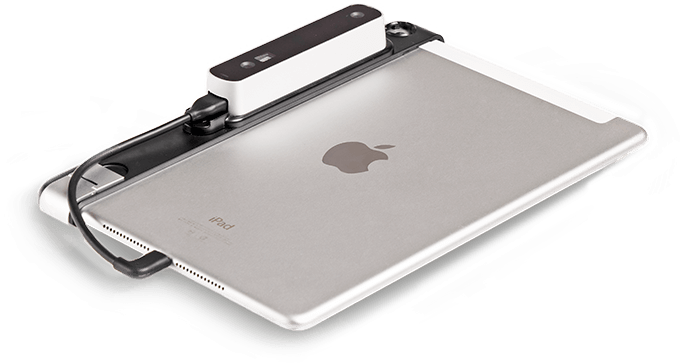
| Devices | iPhone X or newer, iPad Pro | iPad |
| What you can scan | Everything on this page, with both methods | |
| Extra hardware | None | Structure Sensor 3 or Mark II |
Requirements
| Operating system | iOS / iPadOS 15.6 or newer |
|---|---|
| App languages | English, Dutch, German, French, Portuguese |
| Account | LutraCAD login |
| Offline | Scanning, photos, documents and the form keep working without a connection once you are logged in |
Using a Structure Sensor? See the iPad with Structure Sensor.
Orders from your clinics, in your own app
Use TrueScan to collect scans and prescriptions from the clinics you produce for.
Lab Management System
If you want, your clinics create the order straight from the app in your Lab Management System. The prescription form is part of the app and is set up for your lab, with your own questions and options. It travels with the scans and photos in the same order. LutraCAD reads the answers from the form, which makes the design automatic while you keep full control.
White label
Give the app your own logo and colours, so your clinics scan in an app with your name on it.
One-time scan links
Generate a unique link in your webshop, and your customer can make a single scan without logging in.
QR codes
Share a QR code or link that opens a new order with the reference already set and the prescription form filled in.
Other hardware
Want TrueScan
for your clinic or lab?